Home > HostFact: Switching to the New Integration

Switching to the new HostFact integration

Your domains and hosting are already with Superspace. In HostFact, they’re still linked to the old provider. Follow this guide to switch them over: first, add the new registrar and server, then replace your existing services. Your domains and websites themselves will remain unchanged.

Mission control

Before You Begin

  • HostFact Pro
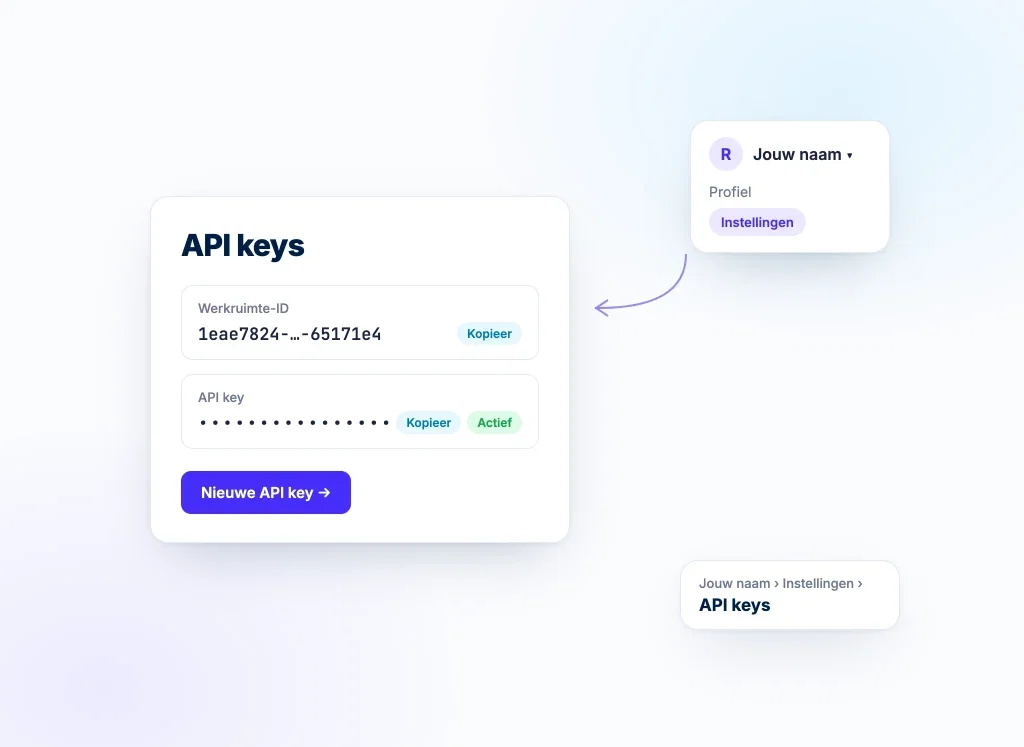
  • You Workspace ID and API Key. You can find them in the portal: log in to control.superspace.nl, click your name in the top-right corner, and go to Settings → API keys.
  • The latest domain and hosting plugin.
  • A fresh backup of your HostFact database. You'll be making a lot of changes to your services soon, so you'll want to be able to revert them if needed.

Leave your old registrar and server as they are until everything has been migrated. You'll clean them up at the very end.

Superspace-portaal: Werkruimte-ID en API key vinden onder Instellingen, API keys
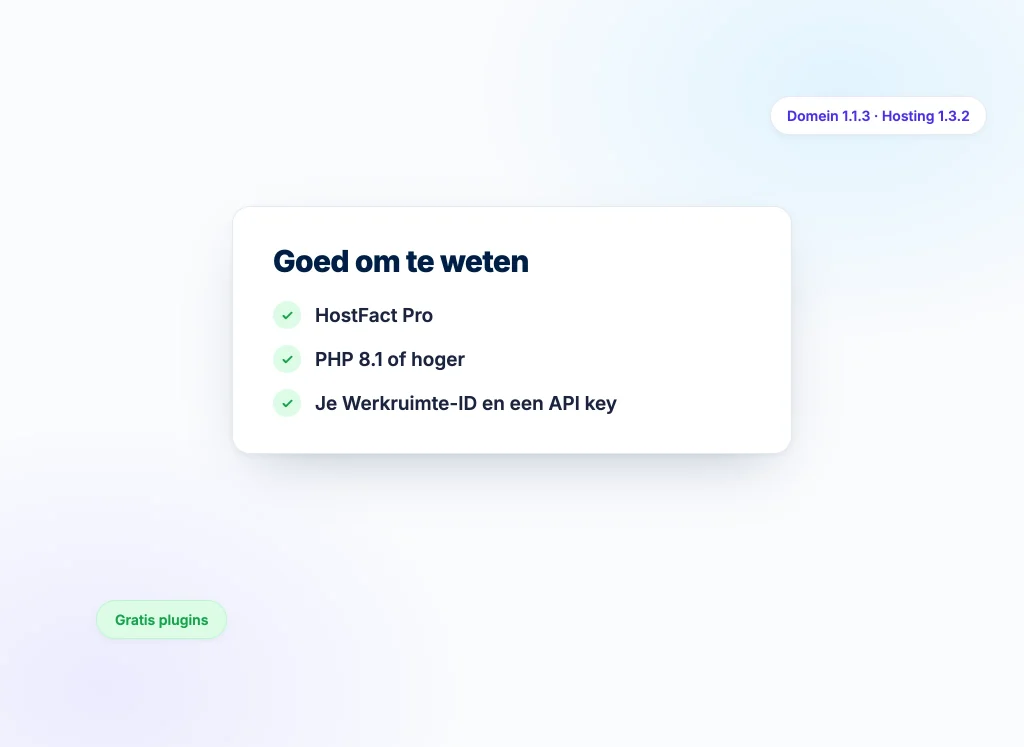
Goed om te weten: HostFact Pro, PHP 8.1 of hoger, Werkruimte-ID en API key

Step 1: Add a registrar

  1. Place the folder Superspace from the domain zip file into Pro/3rdparty/domain/.
  2. Go to Management → Domain → Registrars and add a registrar. Give it a recognizable name, for example Superspace (new), and select the link Superspace.
  3. Username: https://control.superspace.nl:<Werkruimte-ID>. Password: you API Key. Test mode: from.
  4. Enter the same nameservers you're currently using and save.

Does it work? Open the registrar and select Import Domains. If you see your domains listed here, the connection is working properly. Do not import anything here, because your domains are already in HostFact.

Step 2: Server and Packages

  1. Place the folder SuperspaceHosting from the hosting ZIP file into Pro/3rdparty/hosting/.
  2. Go to Management → Hosting → Servers and add a server. Hosting panel: Superspace. Location: https://control.superspace.nl/, gate 443. Username: you Workspace ID. Password: you API Key.
  3. Move your hosting packages to the new server and select a name for each package in Superspace: lite, basic, pro or max for WordPress sites, cpanel_basic and also for cPanel, mail_5 through and including mail_500 for Mailspace.

Starting now, new hosting orders will be processed by Superspace.

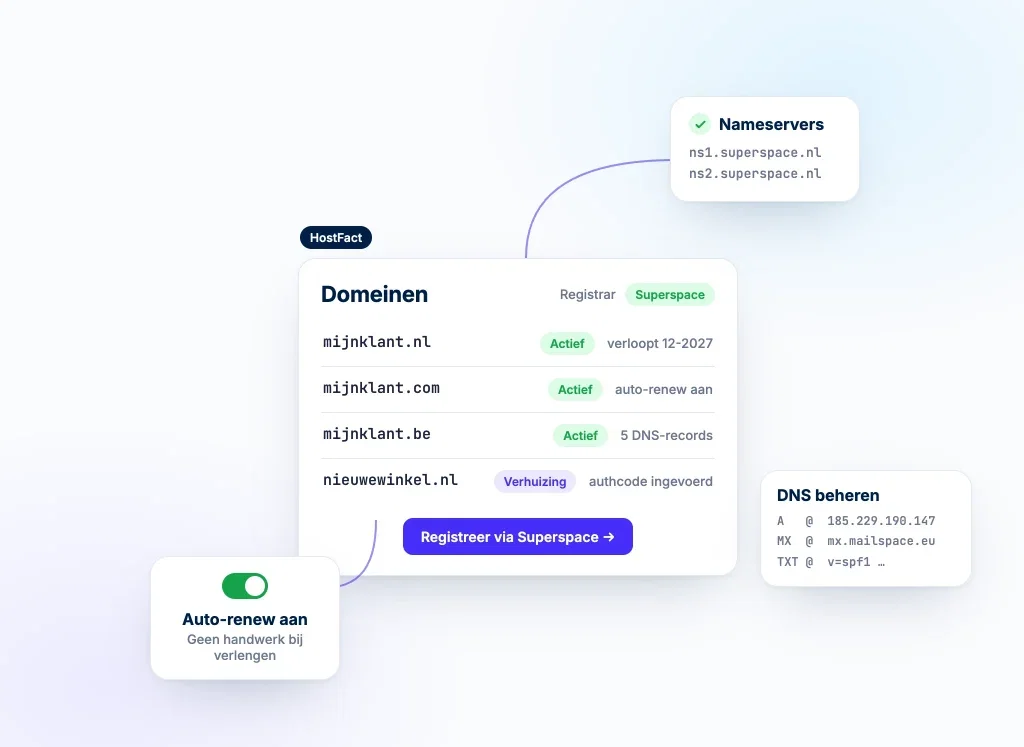
Domeinen in HostFact beheren via de Superspace-koppeling, met nameservers, auto-renew en DNS
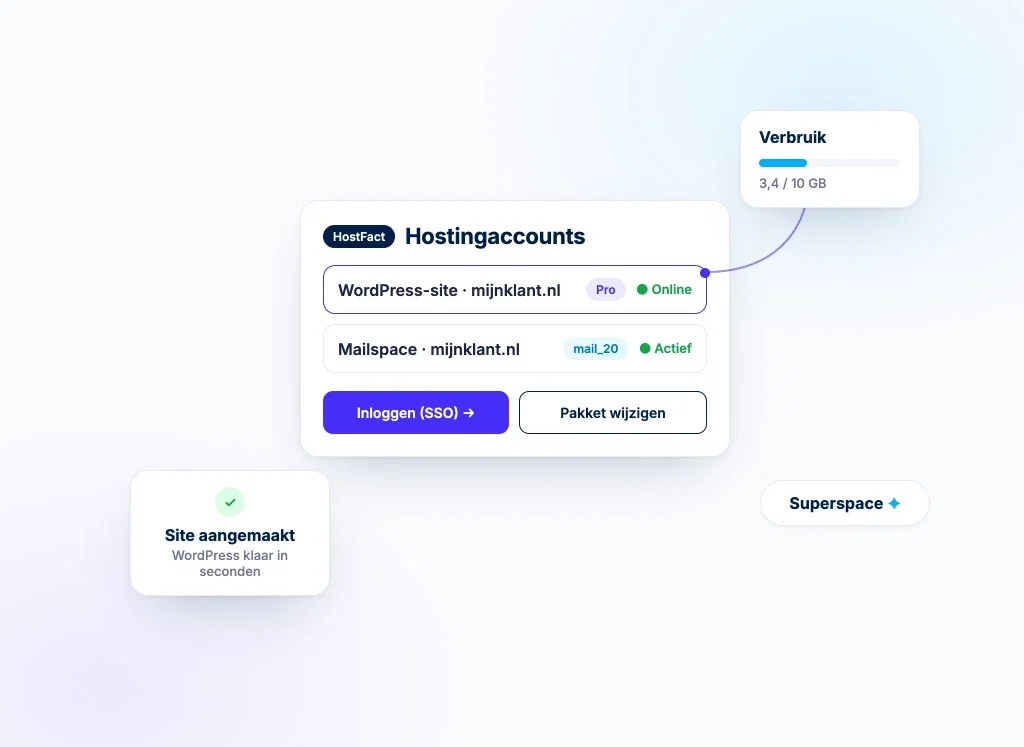
Hostingaccounts in HostFact: WordPress-site en Mailspace beheren, inloggen met SSO en verbruik bekijken

Step 3: Convert domains

You don't need to transfer your domains, and you don't need an auth code. You just tell HostFact which registrar is associated with them.

  1. Register a domain and choose Edit.
  2. Set up the registrar Superspace (new) and save.
  3. Click on Synchronize. HostFact retrieves the expiration date, nameservers, and auto-renew settings from Superspace. If the expiration date is correct, the domain has been successfully transferred.

HostFact requires that a domain's contacts (owner, admin, and tech) be registered with the same registrar. You'll need to manually recreate them for each contact. The migration script below does this for you, even for domains you've already migrated.

Then put it next to you domain extensions (.nl, .com, and the rest) the registrar as well Superspace (new). Otherwise, new registrations will still go through the old interface.

Step 4: Convert Hosting Accounts

Here, too, you don't need to move anything. HostFact just needs to locate the account on the new server, and it does that based on the username.

  1. Open the new server and select Import Accounts. You'll see all your sites, cPanel accounts, and email accounts, listed under the username that Superspace uses. Do not import anything here.
  2. Open a hosting account with HostFact and choose Edit.
  3. Set up the server on the new Superspace server, select the appropriate package, and copy the username exactly as it appears in the import summary.
  4. Save. Your subscription and billing will remain unchanged.

Does it work? Reopen the import summary and click re-import. A converted account will then appear under Accounts That Have Already Been Imported.

Superspace-portaal: Werkruimte-ID en API key vinden onder Instellingen, API keys

Faster

Steps 3 and 4 in one go

Do you have a lot of domains and hosting accounts? The migration script converts them all at once. You'll first see exactly what's changing, and changes won't be made until you give your approval.

  • Domains hosted by Superspace will be assigned the new registrar and the correct contacts. For each contact, the script creates one new contact and uses it for all of that contact's domains.
  • Hosting accounts will be assigned the new server and the correct username.
  • Everything is logged, so you can undo it.

First, complete steps 1 and 2. Manually convert any domain extensions that the script skips. No orders are placed through Superspace.

Here's how it works

  1. Set superspace-migration.php in the folder Pro/ from your HostFact.
  2. Create an API key in HostFact and add your server's IP address to the whitelist.
  3. Turn php superspace-migration.php for the IDs of your registrars and servers.
  4. Try it out with your own IDs:
    --old-registrar=3--new-registrar=7--old-server=2--new-server=5
  5. Is the summary correct? Add --apply behind.

Have you already manually transferred any domains? If so, be sure to add the new registrar to the old one as well, for example --old-registrar=3.7. Those domains will then receive only the correct contact information.

Goed om te weten: HostFact Pro, PHP 8.1 of hoger, Werkruimte-ID en API key

Step 5: Check and Clean Up

  • Open a few converted accounts. If you can see the usage and access the control panel via the login button, then everything is linked correctly.
  • Synchronize a few domains and check whether the expiration dates and name servers are correct.
  • Are there no more domains or accounts on the old registrar and server? If so, you can deactivate or delete them.

This is what customers say about Superspace

Path 659
SuperspacePRO Logo Blauw

Our Partner Program for Ambitious Agencies

mark partnercta
mark partnercta
arne 2
Path 660

Frequently Asked Questions

No. Your domains are already registered with Superspace. In HostFact, you only change which registrar is associated with them.

No. Changing a registrar or server in HostFact is an administrative change. Nothing is ordered or renewed.

No. Use the migration script from the step Faster: Steps 3 and 4 in one go. That converts everything at once and shows you what it's going to do first.

In that case, the username will be different from the one in Superspace. Copy it exactly as it appears in the import overview, including capital letters and hyphens, and check to see if the account is on the new server.

Check whether the hosting plugin is in the folder Pro/3rdparty/hosting/SuperspaceHosting/ is. Up to and including version 1.3.0, that folder was called Superspace, just like the domain plugin, and then HostFact won't be able to load both of them. Delete the old folder, replace it with the new one, and select the hosting panel again on the server Superspace.

Your HostFact server must be accessible via HTTPS (port 443) at control.superspace.nl. A firewall that blocks outbound traffic will display exactly this message. Test it on the server using curl -I https://control.superspace.nl/api/about. If you receive a response (even a 401 is fine), then the connection is working properly.

arne klantenservice cta

Support from superheroes

Having trouble with your hosting? Is your website under attack? Or do you need help moving your site? The superheroes at Superspace are just a phone call, chat, or email away. We’ll spring into action right away and are always here for you.

Chat with us

Ask your question directly on the online chat on weekdays between 9:00 am and 4:30 pm.

Send an email

Email your question to us and you will receive an answer within a few hours.

Call us

You can reach us on weekdays between 9:00 and 16:30 at 088-0006666

mark footer