

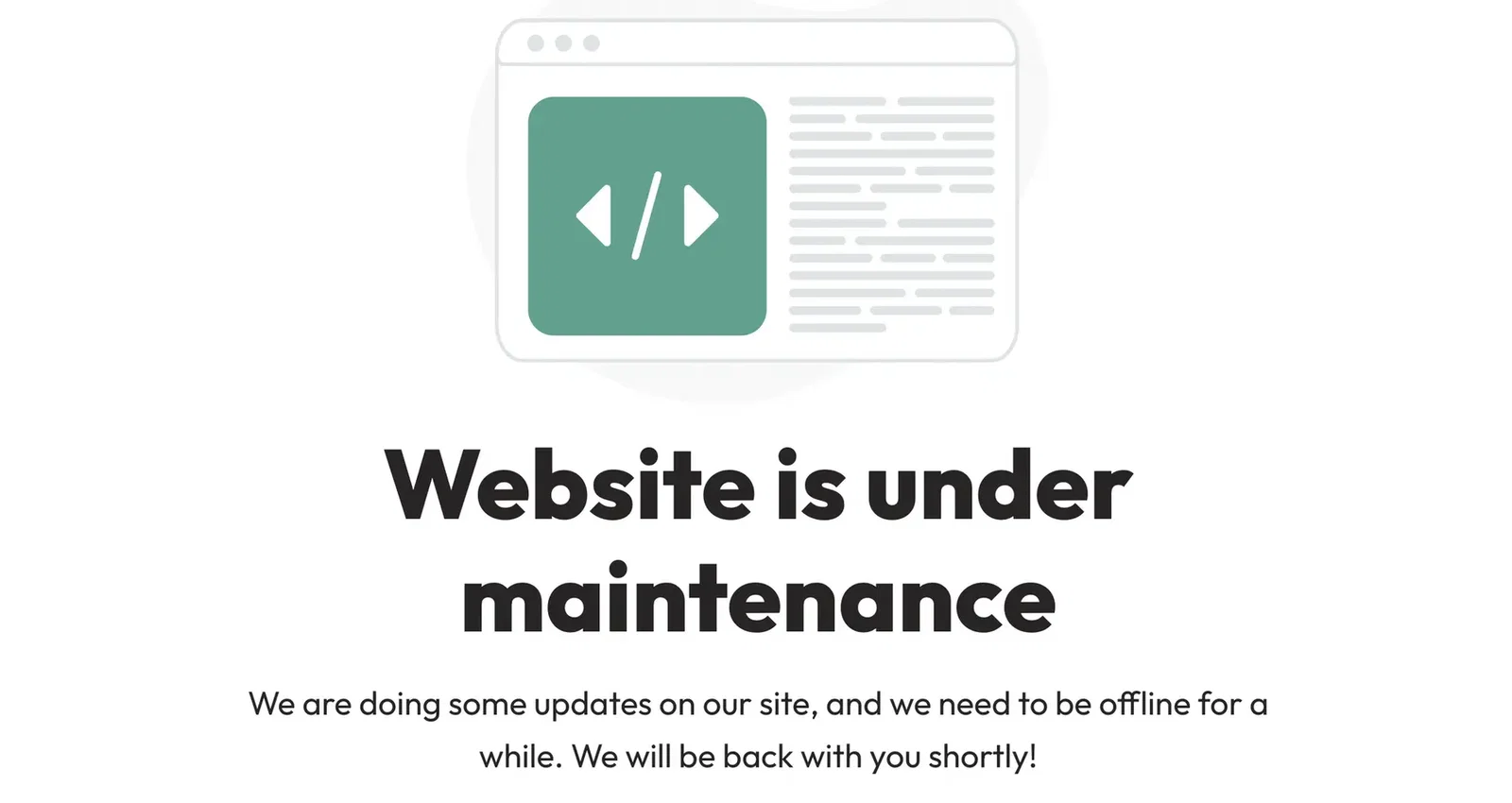
In this blog post, I'll show you how to create a WordPress put your website into maintenance mode. There are several ways to enable this, and I’ll walk you through both step by step. Maintenance mode is designed for when you want to make changes to your online store or website and don’t want visitors to be able to view your site while maintenance is underway.
The two methods I'm going to discuss are:
- Method 1: Elementor Maintenance Mode
- Method 2: WP Maintenance Mode
Method 1: Elementor Maintenance Mode
- Step 1: Log in to your WordPress website
- Step 2: Elementor >> Extras >> Maintenance Mode
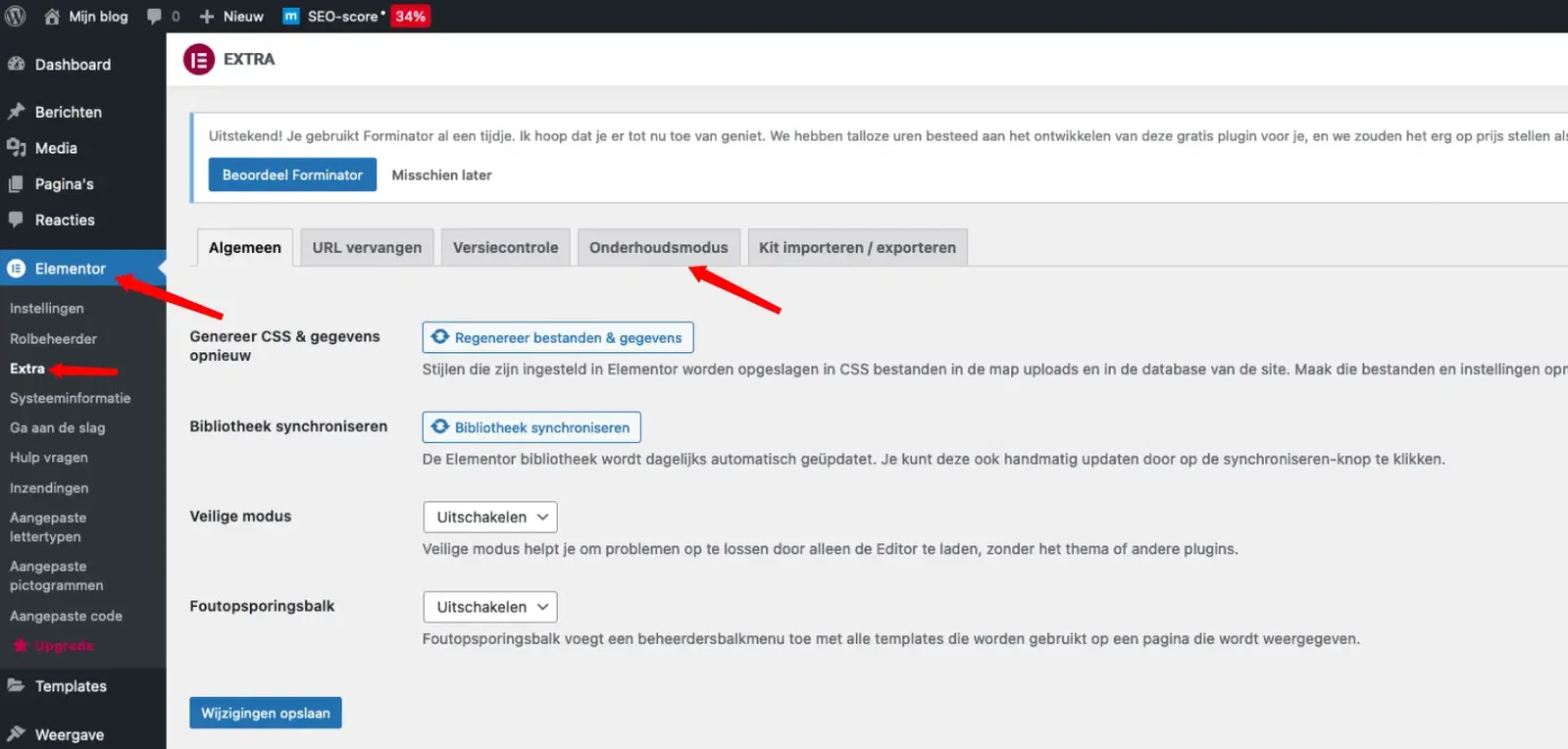
- Step 3: In this step, it's best to create a new template. Click on Make one now.
- Step 4: Name the template, and then click Edit with Elementor (Edit with Elementor).
- Step 5: You can now create your own maintenance mode page.
- Step 6: The page from Step 3 is still open. If you refresh this page now, you'll see the new theme. Select the new theme at Select a theme, at Select mode Select "Maintenance" and then click on Save changes.
You can customize the page to your liking. See below to see what your website looks like in maintenance mode and the result. You can only view the maintenance page if you are logged out of wp-admin. You can also disable maintenance mode under "Extra" once your website is ready or after maintenance.
Method 2: WP Maintenance Mode
- Step 1: Log in to your WordPress website
- Step 2: Navigate to Plugins on the left side, select "New Plugin," and then search on the right side for WP Maintenance Mode.
- Step 3: Click on Install and Activate, and you'll see the image below. You can then choose which free template you want. Click on Continue.
- Step 4: Click on I'll pass for now, thanks! This is actually for the newsletter, which you can skip.
- Step 5: The maintenance page is ready. You can view the page by clicking on View page.
- Step 6: Finally, click Uupdate and then maintenance mode is active. You could also edit this page, just like the social media icons.
The result is shown below:
If you have any questions, you can contact Please contact us. We'd be happy to help you.

